







Know your site is ready before you scan #
Rolling out scans at a new site often comes with an uncomfortable unknown. You may have an Explorer deployed, but you still do not know what the backhaul traffic looks like or how reliable the connection really is. In distributed environments, M&A scenarios, or remote locations, these questions often go unanswered until something breaks.
Explorer-based internet speed testing helps remove that uncertainty. By measuring internet connectivity directly from deployed Explorers, runZero gives you an early signal into whether a site’s connection is usable before you rely on it for scanning, data uploads, or ongoing monitoring.
Why internet speed matters before you scan #
Internet speed tests do not tell you whether scanning will impact production traffic, but they do answer an important prerequisite question: is the connection itself stable and usable. There are two common scenarios where this matters:
First, when you deploy an Explorer at a remote site, you often plan to scan from that node rather than across a VPN or WAN link. Knowing the quality of the site’s outbound connectivity helps you decide whether that approach is viable or whether you should limit or stage activity differently.
Second, poor connectivity can still impact data uploads back to the console, integration imports, and day-to-day reliability. Identifying weak or unstable links early helps avoid surprises and makes troubleshooting much easier when issues arise later.
How Explorer-based bandwidth testing works #
Explorer-based bandwidth internet speed testing allows you to measure internet connectivity directly from the site where the Explorer is installed. This feature uses the well-known speedtest.net infrastructure to find the closest server in order to report bandwidth, latency, and jitter.
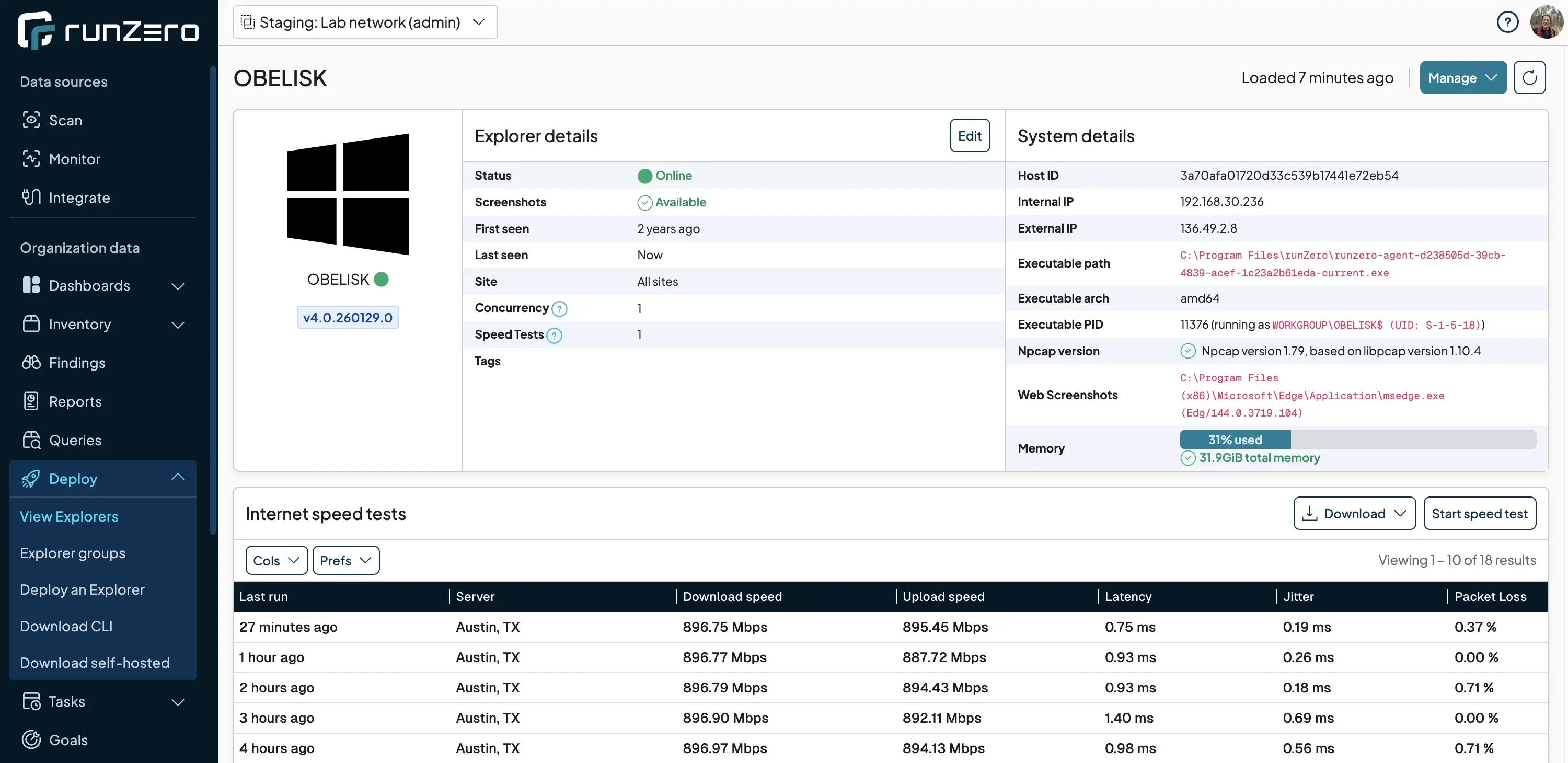
You can run a speed test on demand using the “Start speed test” action, which immediately starts an Explorer action that records upload speed, download speed, and latency. This is useful for quick validation during deployment or troubleshooting. Once the test completes, it will show in the table on the Explorer details page, and offer Download actions for even more details on the results of the test.
For ongoing insight, we recommend configuring recurring tests from the Explorer details page. The frequency is set in hours and defaults to zero, meaning no recurring tests run unless you explicitly enable them. We don’t recommend running tests any more frequently than hourly; since repeated speed tests can actually impact available bandwidth. Hourly tests minimize potential disruptions while still giving you detailed performance over time.
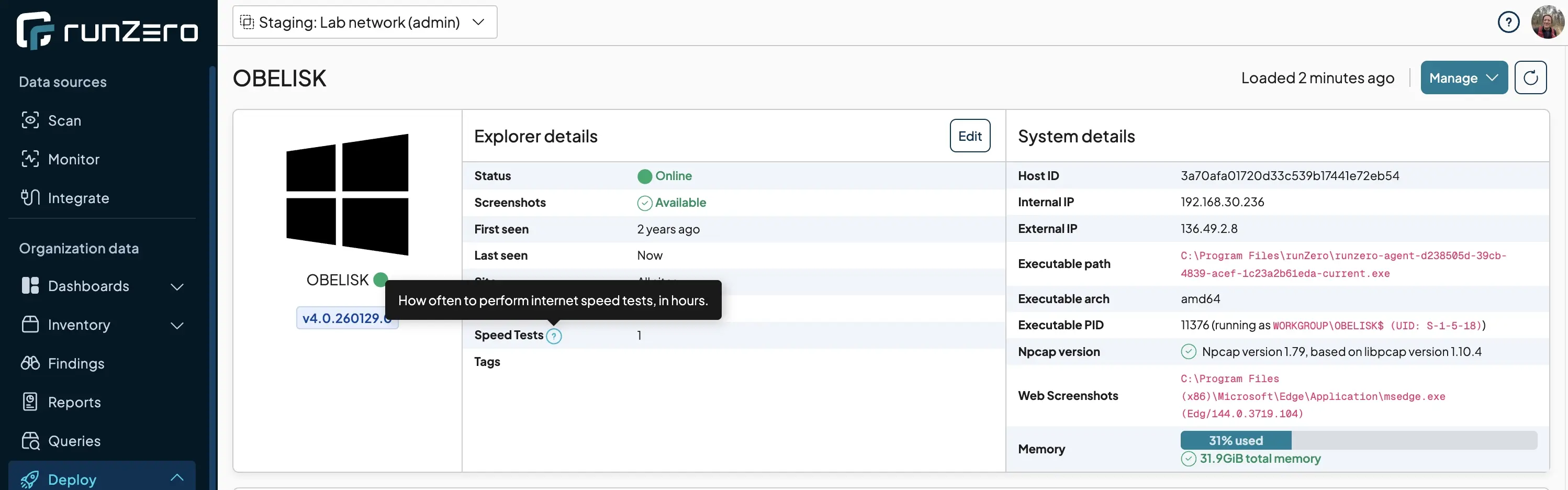
Since these tests use the well-known speedtest.net network, the Explorer does require connectivity to the main speedtest.net site as well as any regional speed test nodes. This test process works by querying https://www.speedtest.net/api/js/servers for a list of the closest servers based on the external IP of the Explorer. The Explorer then pings the full server list to find the system with the lowest latency. Finally, the test concludes by performing download and upload bandwidth tests while measuring packet loss, latency, and jitter. If your firewall or proxy blocks the speedtest.net portal or the regional test servers, this process may report an error.
You can run a speed test on demand using the ‘Start speed test’ action; this will schedule a test on the Explorer immediately, and after a minute or so, report the upload speed, download speed, jitter, and latency.
Designed to be safe and low impact #
Internet speed testing is intentionally conservative. Tests only run when triggered manually or on the schedule you configure. There is no background activity by default, and no impact unless you choose to enable it. Please note that if you self-host runZero and run in Offline mode, speed tests will be disabled, since they do require internet access. Speed tests may fail if your firewall does not allow arbitrary ICMP and HTTP traffic to speedtest.net portal and the frequently rotating list of regional servers.
If an Explorer is not on a supported version, the UI clearly indicates this and guides you to upgrade directly from the Explorer details page, making it easy to get started without additional setup.

Included with your Explorers #
If you already have Explorers deployed, you already have this capability, with no additional licensing or setup required.
Explorer includes built-in bandwidth testing that integrates directly into existing workflows. It gives you a simple way to understand connectivity at your sites, identify unreliable links early, and avoid learning about bandwidth problems after they start causing issues.
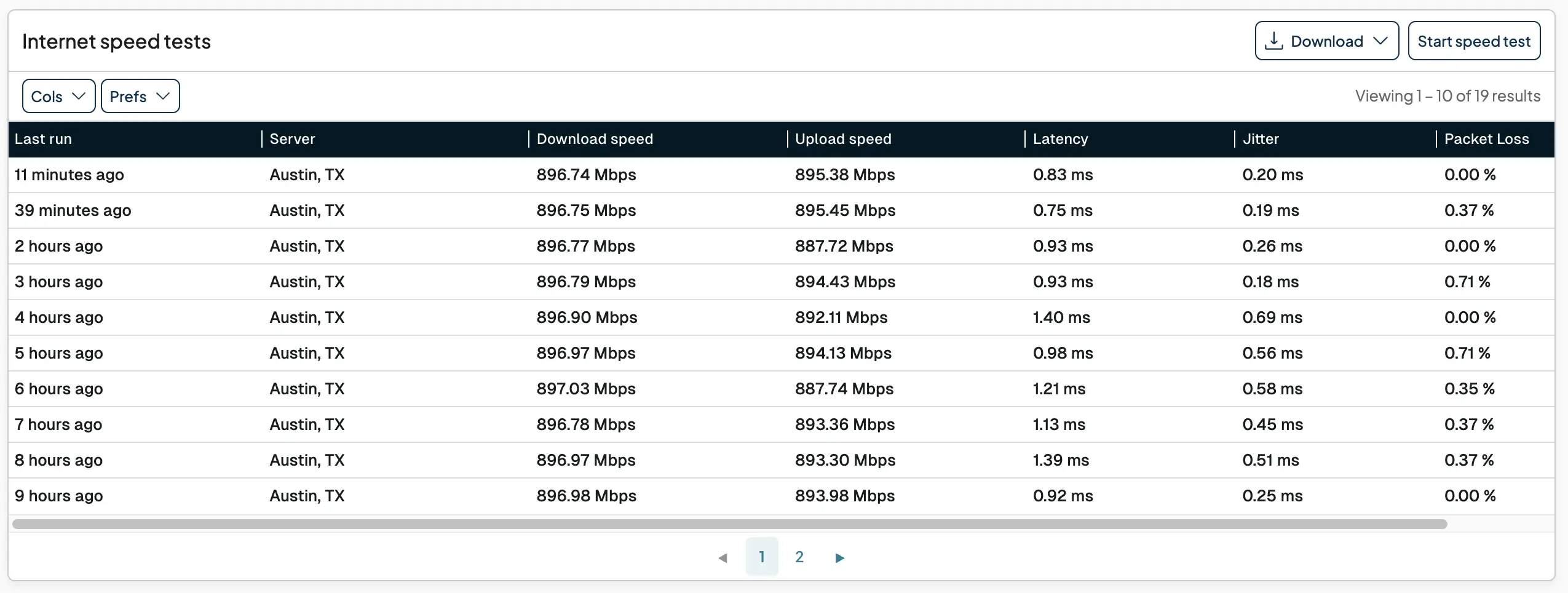
From the Explorer details page, you can also download detailed results for recent tests. The JSON formats include extensive metadata, such as the public IP address used and detailed statistics that are not yet surfaced in the UI.
Together, this gives teams not just a speed test result, but a verifiable, automatable record of when tests ran, where they ran, and what they observed.
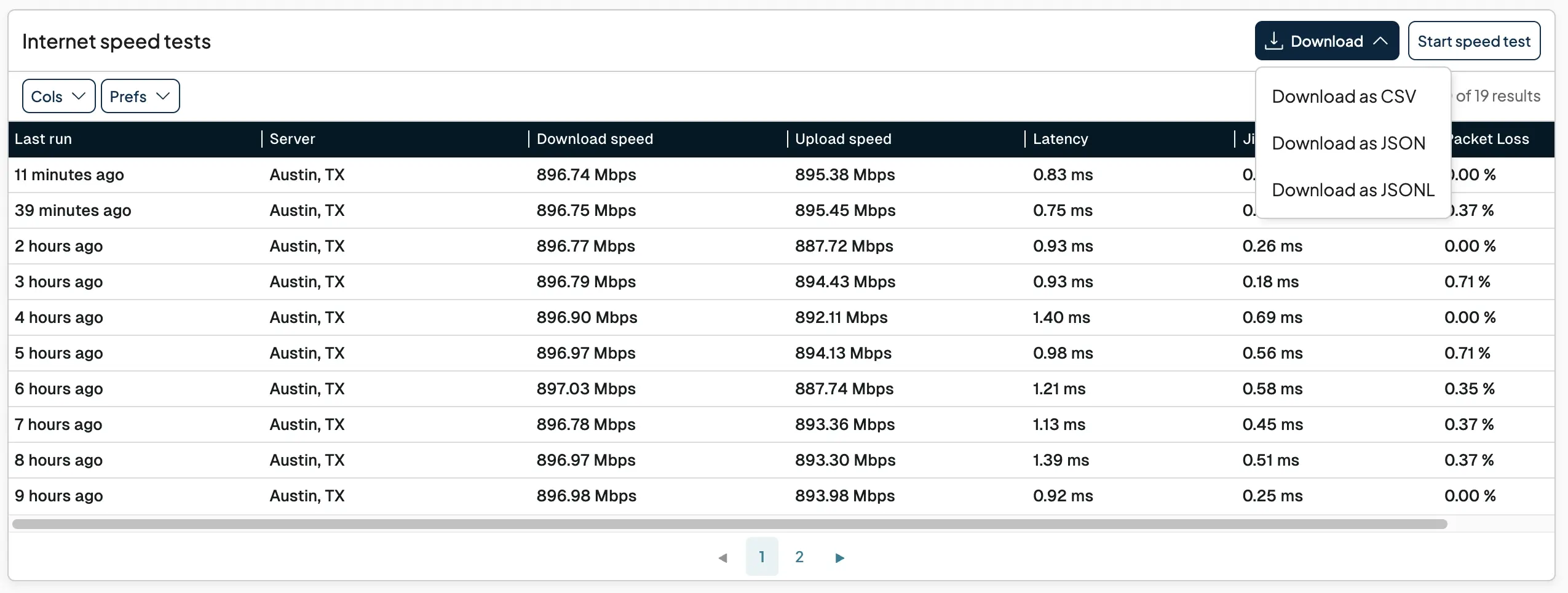
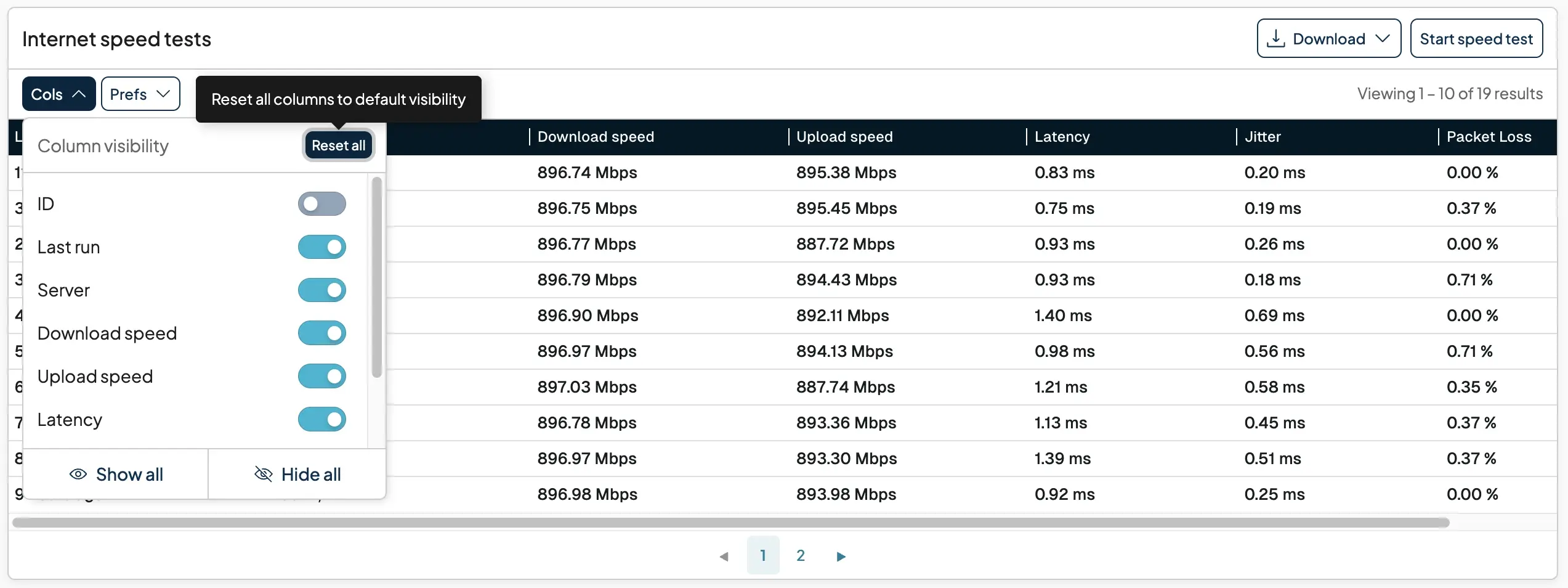
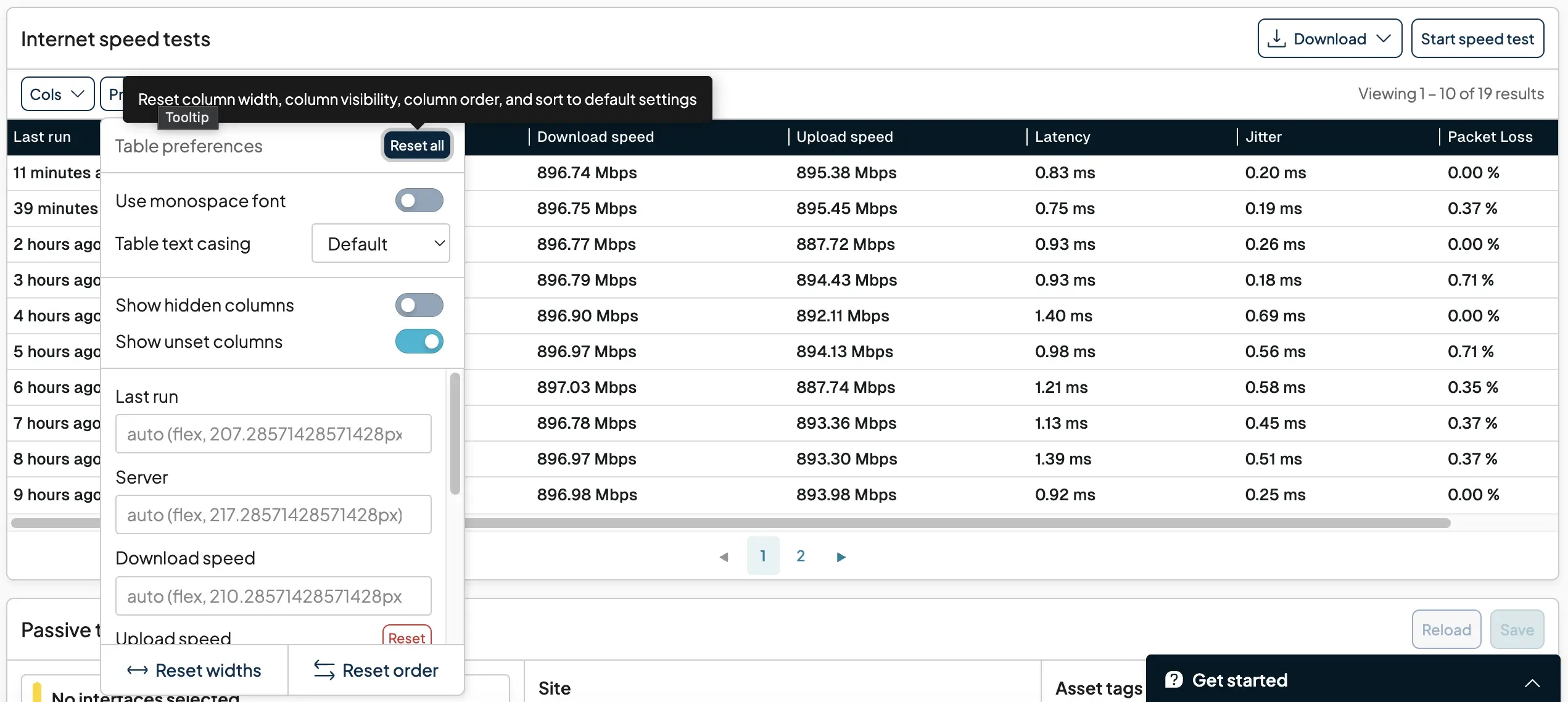
You can also set column visibility, and table preferences from within the Internet Speed tests page. So, that you can make sure you are seeing what is most important to you, and how you want to view the data within the grid.
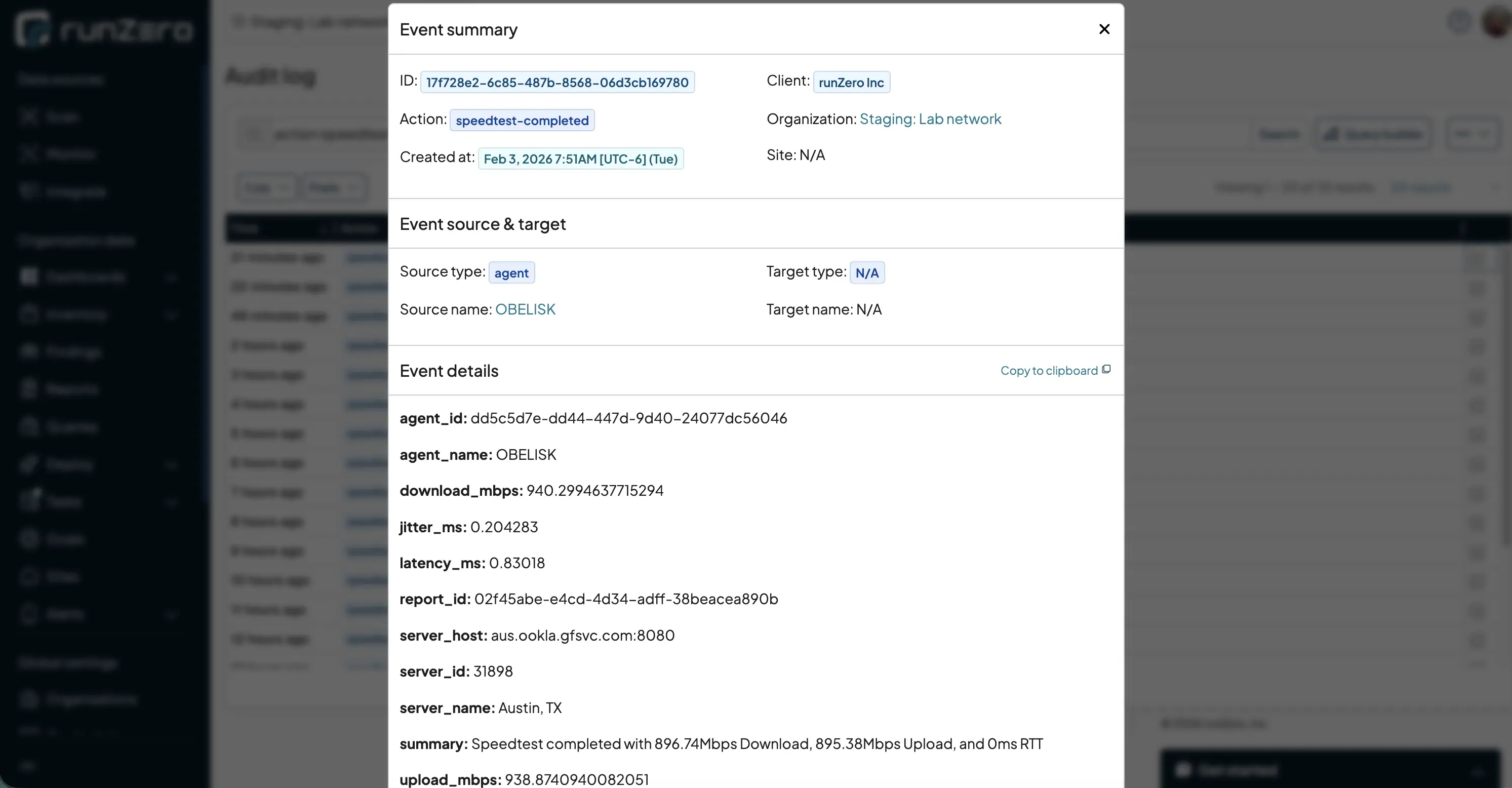
Structured speed test event in the audit log #
Each completed speed test generates a structured event with metrics like latency, jitter, and throughput that can be used to trigger alerts or automation when connectivity degrades or tests fail.
Run an internet speed test you can verify #
Start a free runZero trial to measure site connectivity directly from your Explorers — with full visibility and audit logs included. After the trial period, your account can be converted to our free Community Edition.
As always, we would love your feedback as you use this feature. Let us know how it fits into your deployment and site readiness workflows. Feel free to reach out using the in-product support form or contact the team via support@runzero.com.